> For the complete documentation index, see [llms.txt](https://docs.bugbug.io/llms.txt). Markdown versions of documentation pages are available by appending `.md` to page URLs; this page is available as [Markdown](https://docs.bugbug.io/recording-tests-steps/recording-pop-up-window-actions.md).
# Recording pop-up window actions
How BugBug records and runs actions in pop-up windows, such as a login with a Google account: the pop-up opens as a new tab and the test switches to it automatically.
You can record and run actions in pop-up windows. This is helpful, for example, when the user logs in with an external third-party service, such as *Google authentication*.
## How does it work?
BugBug records and runs each test in a single browser window. When your app opens a pop-up window, BugBug opens it as a new browser tab in the same window and switches the test context to that tab. When the flow in the pop-up ends, for example after a successful login, the tab closes automatically, just like the pop-up window would, and the test goes back to the previous tab.
Learn more about tabs in [Tabs & iframes](/editing-tests/tabs-and-iframes.md).
{% hint style="info" %}
As an example, we used the Podio page.
{% endhint %}
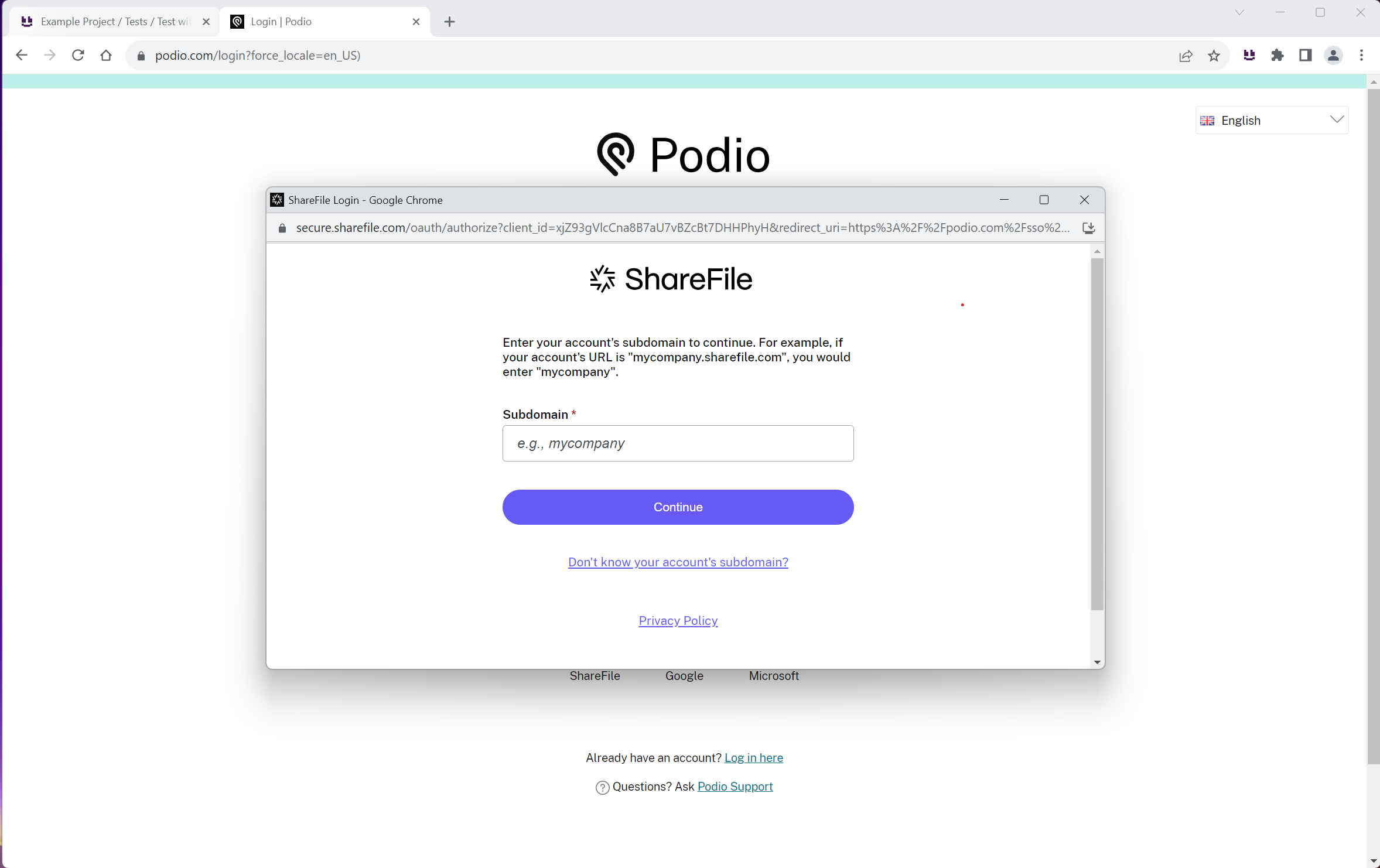
#### **Regular view:**
Regular pop-up window
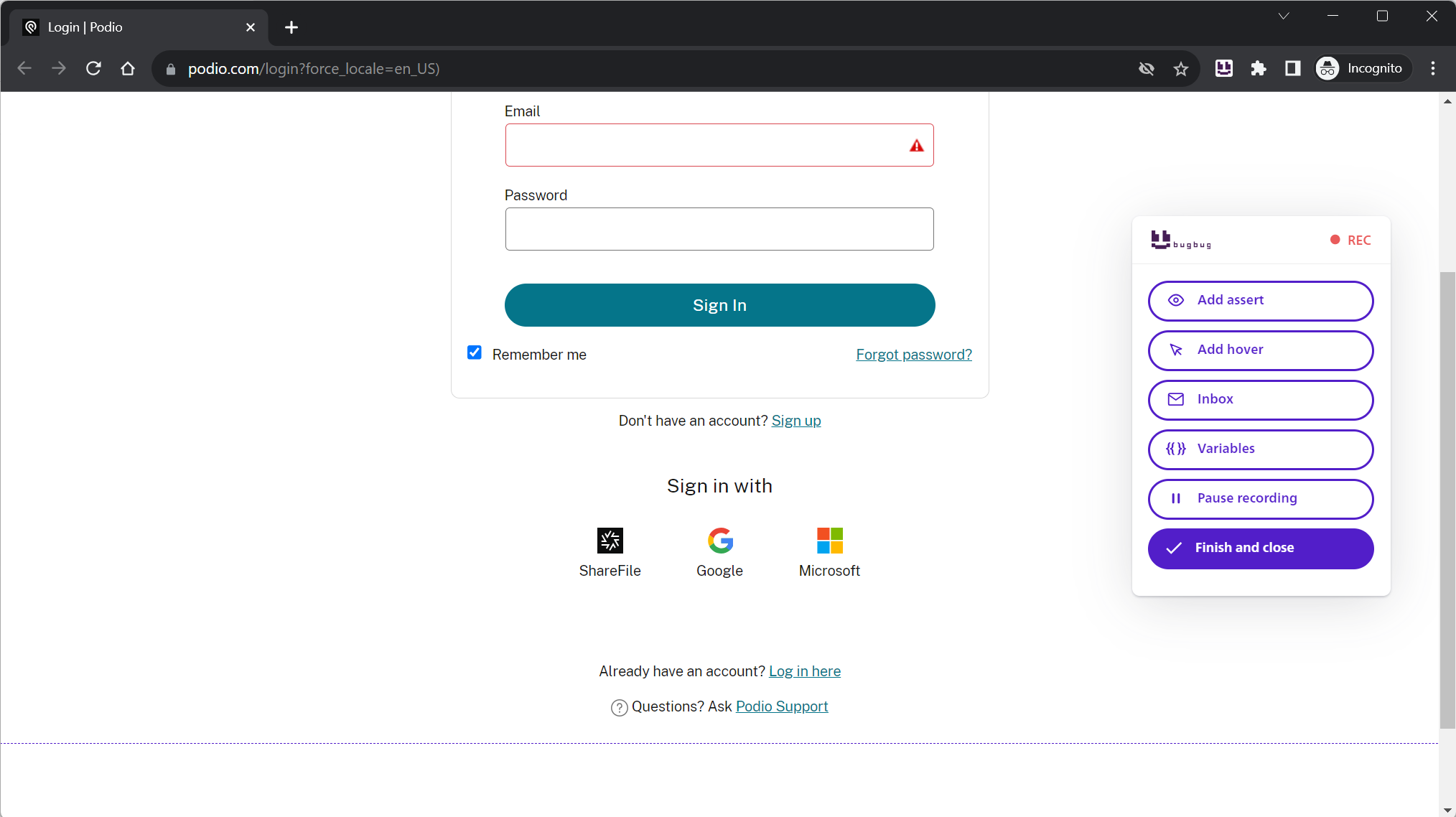
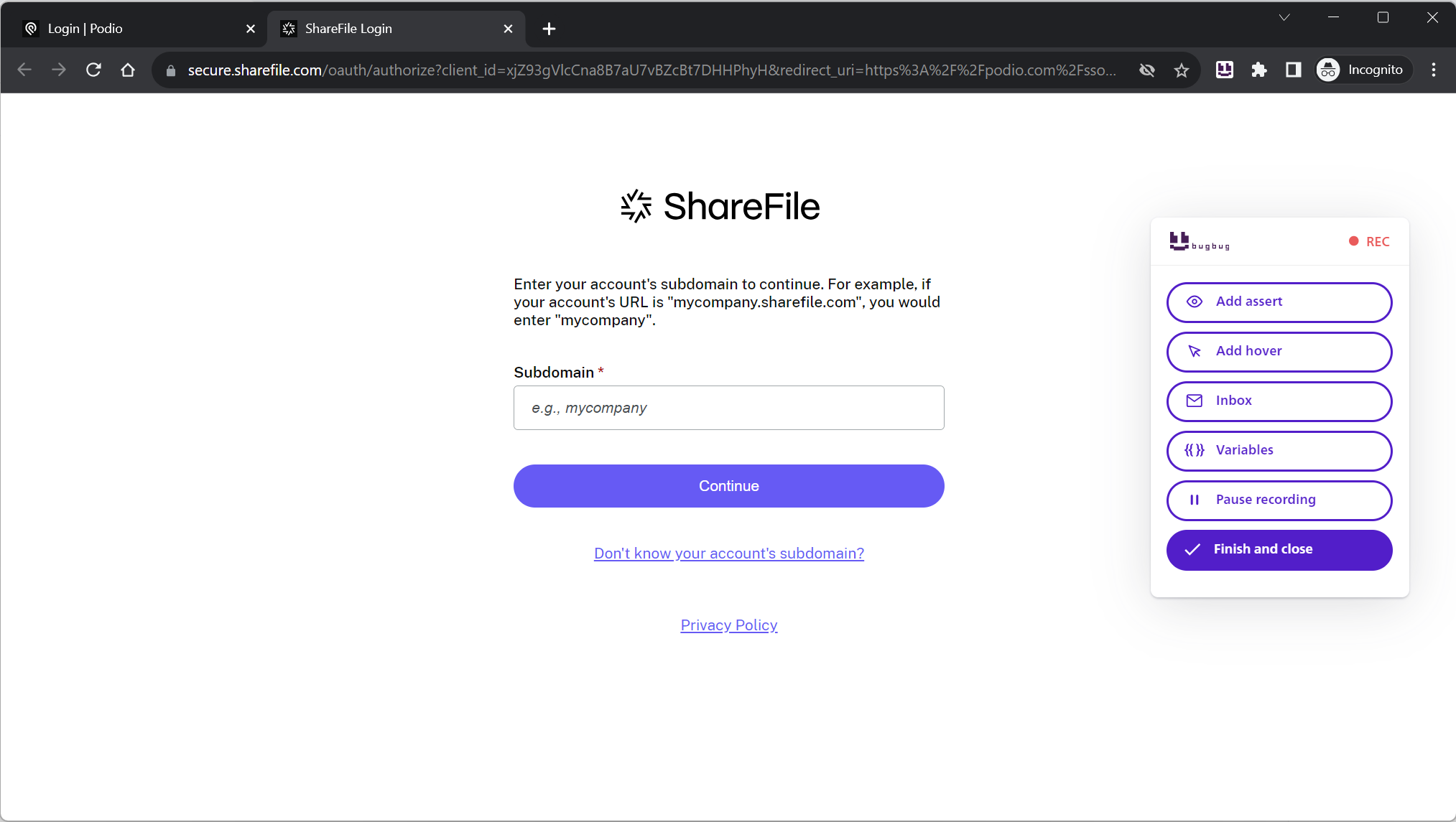
#### While recording the same step/flow in BugBug:
The tab pop-up doesn't appear yet
The pop-up opens in a new browser tab
## Recording a test with pop-up window handling
1. Create a new test (or edit an existing one)
2. Start recording new steps
3. Click the button or element that opens the pop-up window. Instead of a new pop-up, the page opens in a new browser tab, and the context automatically switches to that tab
4. Do everything you need on this tab, for example enter the login details and complete the whole flow. All actions are recorded. When the flow is completed, the tab closes automatically, just as the pop-up window would
5. You're back on the previous tab and can continue recording there
---
# Agent Instructions
This documentation is published with GitBook. GitBook is the documentation platform designed so that both humans and AI agents can read, navigate, and reason over technical content effectively. Learn more at gitbook.com.
## Querying This Documentation
If you need additional information that is not directly available in this page, you can query the documentation by asking a question.
Perform an HTTP GET request on the following URL with the `ask` and `goal` query parameters:
```
GET https://docs.bugbug.io/recording-tests-steps/recording-pop-up-window-actions.md?ask=&goal=
```
`ask` is the immediate question: it should be specific, self-contained, and written in natural language.
`goal` is what the user is ultimately trying to achieve, the reason they need the answer. Sharing it helps GitBook give you a better, more relevant answer. A goal is most helpful when it describes the outcome the user wants rather than restating the question. For example, with `ask=how do I create an API token`, a goal like `automate deployments from our CI pipeline` lets GitBook tailor the answer to that use case.
The response will contain a direct answer to the question and relevant excerpts and sources from the documentation.
Use this mechanism when the answer is not explicitly present in the current page, you need clarification or additional context, or you want to retrieve related documentation sections.