> For the complete documentation index, see [llms.txt](https://docs.bugbug.io/llms.txt). Markdown versions of documentation pages are available by appending `.md` to page URLs; this page is available as [Markdown](https://docs.bugbug.io/integrations/vercel.md).
# Vercel
Connect BugBug to Vercel to run selected test suites against Preview and Production deployments and report the result as a Vercel Check.
BugBug can start end-to-end test suites when a Vercel deployment is ready. The run uses that deployment's URL, and its result appears on the deployment in Vercel as a Check.
Use it to test a Preview deployment before merging a change or to run tests after a Production deployment. You choose which suites run in each environment.
{% hint style="warning" %}
The Vercel integration requires a Pro plan or higher. Each connection links one BugBug project to one Vercel project.
{% endhint %}
## Before you connect
Create the BugBug suites you want to run. Each test should start with a **Go to URL** step containing an absolute URL if you plan to use automatic deployment URL handling.
If your Vercel project uses Vercel Authentication or Password Protection, also copy its **Protection Bypass for Automation** secret. You can find it in Vercel under **Project Settings > Deployment Protection > Protection Bypass for Automation**.
## Connect Vercel from BugBug
1. Open your project in BugBug and go to **Integrations**.
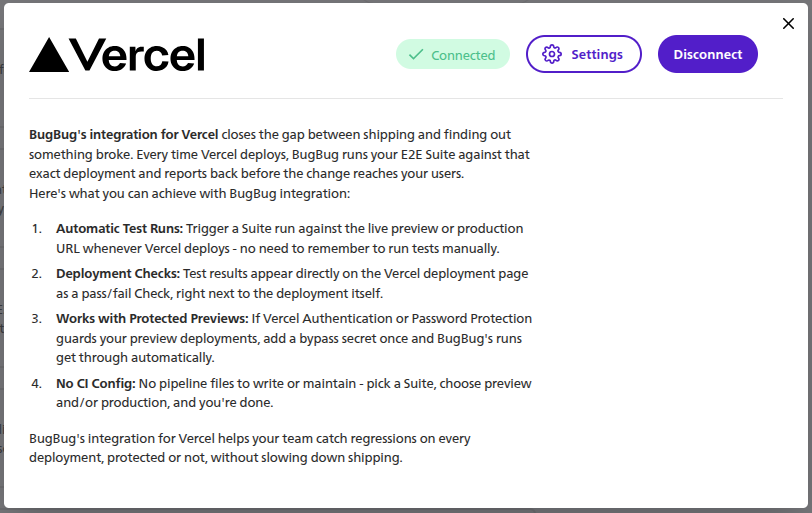
2. Find **Vercel** and click **Manage**.
3. Click **Connect**.
4. Authorize BugBug in Vercel and choose the account or team that owns your Vercel project.
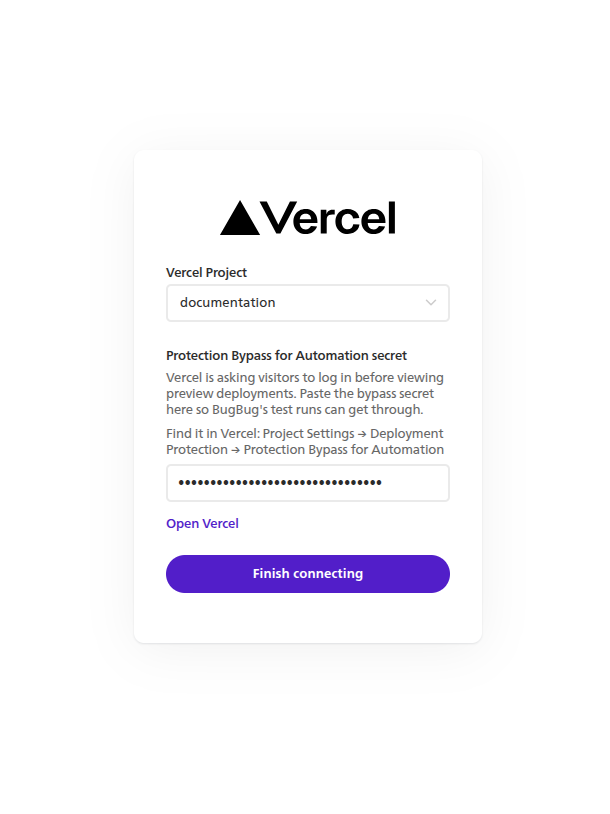
5. Back in BugBug, select the Vercel project you want to connect.
6. If BugBug reports Vercel Authentication or Password Protection, enter the Protection Bypass for Automation secret.
7. Click **Finish connecting**.
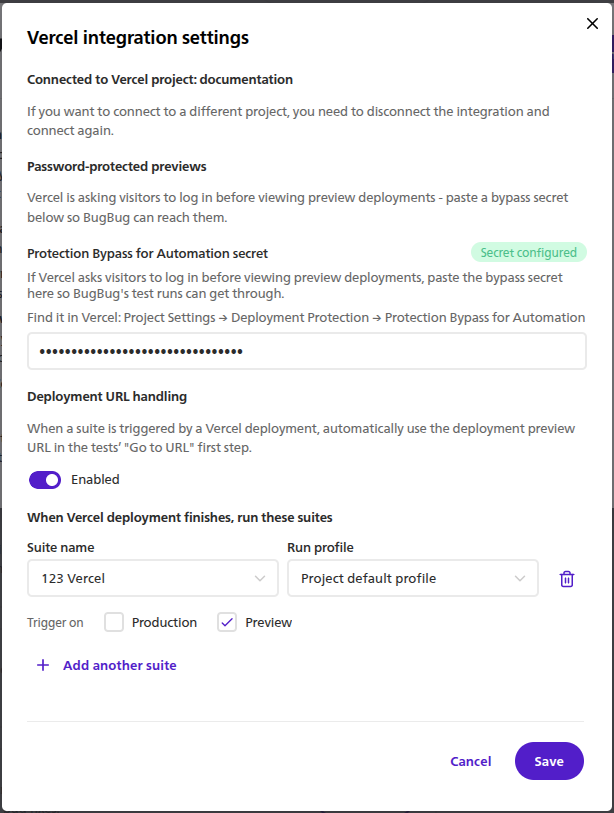
After the connection succeeds, BugBug opens the integration settings. Add at least one suite mapping before closing this window. A connection without mappings does not start any test runs.
## Choose which suites run
In **Vercel integration settings**, click **Add suite** and configure a mapping:
1. Select a BugBug suite.
2. Choose a run profile, or leave **Project default profile** selected.
3. Select **Preview**, **Production**, or both under **Trigger on**.
4. Add more suites if needed.
5. Click **Save**.
Trigger settings belong to each suite mapping, so Preview and Production deployments can run different suites.
## Open the integration from Vercel
BugBug is available in the [Vercel Marketplace](https://vercel.com/integrations/bugbug), but the first connection must start from the BugBug **Integrations** page so BugBug knows which project to connect.
After the connection is set up, the **Configure** action in Vercel takes you back to the integration in BugBug. Click **Settings** there to edit the configuration.
## Use the deployment URL in tests
**Deployment URL handling** is enabled by default. When Vercel triggers a suite, BugBug replaces the protocol and domain in the first **Go to URL** step of each test with the deployment URL. The path, query parameters, and fragment stay unchanged, and the recorded test is not modified.
The first step must contain an absolute URL. Otherwise, BugBug leaves the recorded URL unchanged and does not look for another **Go to URL** step later in the test.
This works well when the same tests run against local, staging, Preview, and Production environments. Turn the setting off if your suite handles deployment URLs itself.
For more control, use these [built-in variables](/editing-tests/variables.md#use-built-in-variables-for-dynamic-or-random-values) in any supported field:
| Variable | Value during a Vercel-triggered run |
| --------------------- | ------------------------------------------------- |
| `{{vercelUrl}}` | The unique URL of the Vercel deployment |
| `{{vercelBranchUrl}}` | The first deployment alias URL provided by Vercel |
Both variables are empty when a run was not triggered by Vercel. `{{vercelBranchUrl}}` can also be empty if Vercel did not provide an alias for the deployment.
## Test protected deployments
BugBug checks whether the selected Vercel project uses Vercel Authentication or Password Protection. If it does, the Protection Bypass for Automation secret is required during connection.
You can replace the secret later in **Vercel integration settings**. BugBug does not display the saved value. A masked field means that a secret is already configured. If you rotate the secret in Vercel, redeploy the application and then update the value in BugBug. See Vercel's [Protection Bypass for Automation documentation](https://vercel.com/docs/deployment-protection/methods-to-bypass-deployment-protection/protection-bypass-automation) for details.
During a Vercel-triggered run, BugBug sends the secret only to the connected deployment domains. It is not added to the deployment URL.
## Check deployment results in Vercel
When a mapped deployment is ready, BugBug starts the configured suites in the cloud. A Check appears on the Vercel deployment and follows the run status.
Open the Check to view the run in BugBug. Passed runs complete the Check successfully. Failed, stopped, and skipped runs mark it as failed.
{% hint style="info" %}
BugBug reports the result as a non-blocking Check. The integration does not automatically block a deployment or prevent a pull request from being merged.
{% endhint %}
## Change settings or disconnect
Open **Integrations**, find Vercel, and click **Manage**. Use **Settings** to change suite mappings, deployment triggers, URL handling, or the bypass secret.
To connect a different Vercel project, disconnect the current integration and connect again. Disconnecting removes its suite mappings as well.
If deployments stop triggering runs, check that:
* the suite still has a Vercel mapping;
* the mapping enables the correct Preview or Production trigger;
* the BugBug organization still has a Pro plan or higher;
* the bypass secret is current if deployment protection is enabled.
---
# Agent Instructions
This documentation is published with GitBook. GitBook is the documentation platform designed so that both humans and AI agents can read, navigate, and reason over technical content effectively. Learn more at gitbook.com.
## Querying This Documentation
If you need additional information that is not directly available in this page, you can query the documentation by asking a question.
Perform an HTTP GET request on the following URL with the `ask` and `goal` query parameters:
```
GET https://docs.bugbug.io/integrations/vercel.md?ask=&goal=
```
`ask` is the immediate question: it should be specific, self-contained, and written in natural language.
`goal` is what the user is ultimately trying to achieve, the reason they need the answer. Sharing it helps GitBook give you a better, more relevant answer. A goal is most helpful when it describes the outcome the user wants rather than restating the question. For example, with `ask=how do I create an API token`, a goal like `automate deployments from our CI pipeline` lets GitBook tailor the answer to that use case.
The response will contain a direct answer to the question and relevant excerpts and sources from the documentation.
Use this mechanism when the answer is not explicitly present in the current page, you need clarification or additional context, or you want to retrieve related documentation sections.