> For the complete documentation index, see [llms.txt](https://docs.bugbug.io/llms.txt). Markdown versions of documentation pages are available by appending `.md` to page URLs; this page is available as [Markdown](https://docs.bugbug.io/export-import-and-backup/importing.md).
# Importing
Bring BugBug tests and projects back in from YAML, and resolve conflicts when something already exists.
### Import a test
1. Go to the **Tests** screen.
2. Open the **Actions menu** in the top right.
3. Choose **Import test**.
4. Upload a `.yaml` or `.zip` file.
The test is added to the project you are currently viewing. A test ZIP also imports the components it contains.
***
### When something already exists
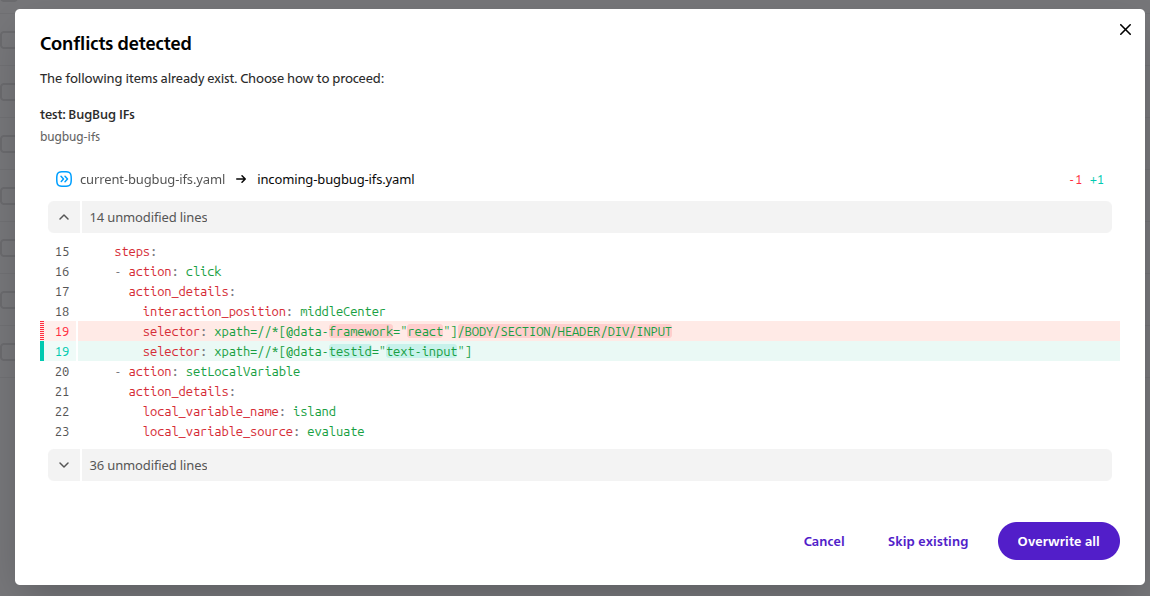
BugBug matches incoming tests and components to existing items **by slug**. If it finds a match, the import pauses and shows the differences.
The modal shows the current and incoming YAML side by side. Review the changes, then choose:
| Choice | Effect |
| ----------------- | ------------------------------------------------------------------------------------- |
| **Overwrite all** | Replace the existing test and components with the incoming ones. |
| **Skip existing** | Keep what you have. Anything in the file that does not exist yet still gets imported. |
| **Cancel** | Nothing is imported. |
If the two versions are identical, BugBug reports that instead of showing an empty diff.
***
### When a component is missing
A test exported as YAML refers to its components by slug instead of including them. If the target project does not have one of those components, BugBug cannot build the test as written.
By default the import stops and names the missing component. You can import the test as a ZIP, or import the project that contains the component first.
***
### Import a whole project
1. Go to your project list.
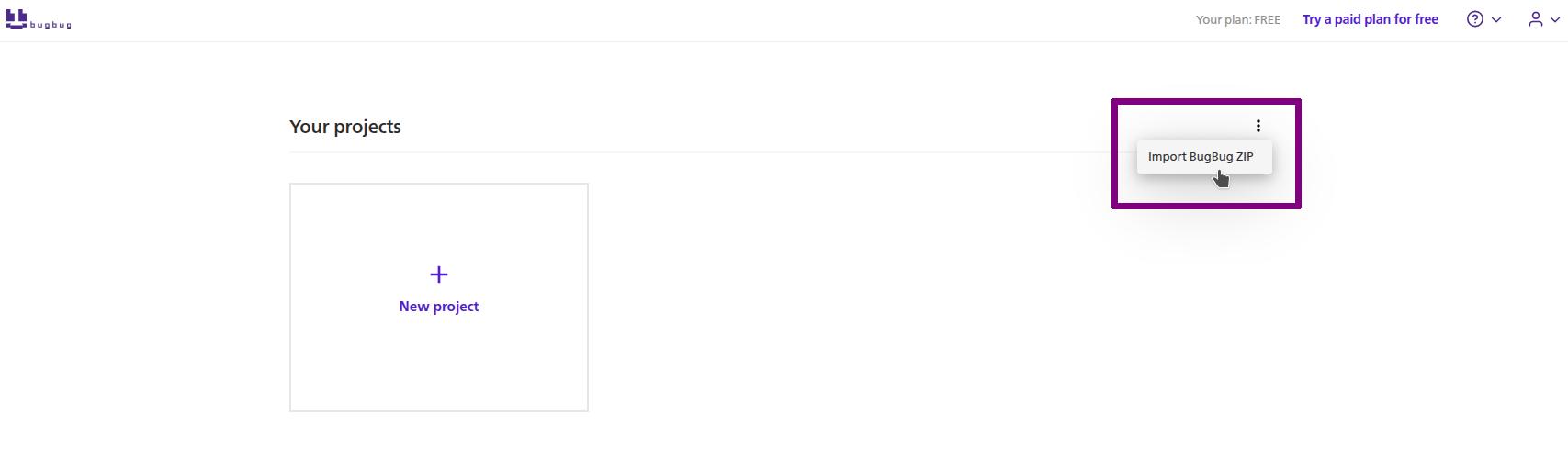
2. Open the **Actions menu** next to the page title.
3. Choose **Import BugBug ZIP**.
4. Upload a project `.zip`.
{% hint style="info" %}
**A project import always creates a new project.** It never merges into an existing one and never overwrites a project you already have. If you want to update an existing project, import the individual tests instead.
{% endhint %}
The archive is imported as a new project, so there are no conflicts with an existing project. The new project appears in your list when the import finishes.
***
### Import with the CLI
You can import a project ZIP or a test YAML/ZIP from the terminal. See the [BugBug CLI](/integrations/cli.md#export-and-import) for the commands and authentication options.
{% hint style="info" %}
`bugbug project import` accepts project ZIP files. `bugbug tests import` accepts test YAML or ZIP files.
{% endhint %}
***
### Import through the API
#### A test
{% code title="Import a test" overflow="wrap" %}
```bash
curl -X POST \
-H "Authorization: Token " \
-F "file=@test_login.yaml" \
"https://api.bugbug.io/v2/tests/import/"
```
{% endcode %}
Two optional query parameters control conflict handling and missing components:
| Parameter | Values | Default | Meaning |
| -------------------- | ------------------- | ------- | ------------------------------------------------------------------------- |
| `conflictMode` | `overwrite`, `skip` | none | Decide up front what to do about slugs that already exist. |
| `onMissingComponent` | `error`, `skip` | `error` | `skip` imports the test without the steps that use the missing component. |
If you omit `conflictMode` and a conflict is found, BugBug writes nothing and returns `200` with the conflict details:
```json
{
"status": "conflict",
"entityIds": {},
"conflicts": [
{
"entityType": "test",
"slug": "login-with-valid-credentials",
"name": "Login with valid credentials",
"existingId": "0b8f...",
"yamlDiff": {
"currentYaml": "...",
"incomingYaml": "..."
}
}
]
}
```
Pass `?conflictMode=overwrite` or `?conflictMode=skip` to resolve conflicts in the same request.
A newly created, updated, or skipped test returns `201`. If `conflictMode` is omitted and a slug conflict is found, the request returns `200` with `status: conflict` and the conflict details instead of writing anything. In each case `entityIds` lists the entities written; a skipped test has an empty list.
To inspect a file before importing it, post it to `/v2/tests/import/check/`. This endpoint does not write anything and can be called repeatedly:
```json
{
"valid": true,
"summary": {
"tests": 1,
"components": 3
}
}
```
The check confirms that the file is a well-formed test export. It does not compare the file with your project, so a passing check does not guarantee that the import will succeed.
View test import endpoints
#### A project
A project import over the API takes two calls. You can also check the archive first.
**Optional check.** Post the archive to `/v2/project/import/check/` to validate it without storing anything. You can call this endpoint repeatedly:
{% code title="Check a project archive" overflow="wrap" %}
```bash
curl -X POST \
-H "Authorization: Token " \
-F "file=@project_shop.zip" \
"https://api.bugbug.io/v2/project/import/check/"
```
{% endcode %}
```json
{
"valid": true,
"summary": {
"tests": 42,
"components": 8,
"suites": 3,
"profiles": 2
}
}
```
The check confirms that the archive is a well-formed project export. It does not compare the archive with your organization, so a passing check does not guarantee that the import will succeed.
**Step 1 - validate and upload:**
{% code title="Validate and upload a project archive" overflow="wrap" %}
```bash
curl -X POST \
-H "Authorization: Token " \
-F "file=@project_shop.zip" \
"https://api.bugbug.io/v2/project/import/validate/"
```
{% endcode %}
```json
{
"uploadId": "3f2a...",
"summary": {
"tests": 42,
"components": 8,
"suites": 3,
"profiles": 2
}
}
```
Use the summary to confirm that the archive contains what you expect. The `uploadId` is valid for **30 minutes**.
**Step 2 - run the import:**
{% code title="Start the project import" overflow="wrap" %}
```bash
curl -X POST \
-H "Authorization: Token " \
-H "Content-Type: application/json" \
-d '{"uploadId": "3f2a..."}' \
"https://api.bugbug.io/v2/project/import/run/"
```
{% endcode %}
```json
{
"projectId": "9c41...",
"status": "pending"
}
```
The endpoint returns the ID of the new project immediately. Larger archives may continue importing in the background.
View project import endpoints
***
### When an import is rejected
A test import runs in a single transaction. If the file is rejected or the import fails, the project stays unchanged.
| What went wrong | Example message |
| --------------------------------------- | --------------------------------------------------------------------------------------------------------------------------------- |
| No file in the request | `No file provided` |
| Upload over the size limit | `File too large` |
| Wrong file type for a project import | `Project import requires a .zip file` |
| The YAML is not a valid BugBug document | `Missing 'schema_version' field in YAML envelope` |
| The YAML is the wrong kind of document | `Expected test YAML, got component` |
| The archive is not a usable export | `ZIP does not contain a test YAML file`, `ZIP contains multiple test files`, `ZIP does not contain a project.yaml file` |
| The archive failed a safety check | `Path traversal in ZIP: ...`, `Symlink in ZIP: ...`, `Suspicious compression ratio for ...` |
| A referenced component is unavailable | `Component "goto-bugbugio" is not available in this project. Try to export the test as a ZIP file containing components as well.` |
| The upload slot expired | `Invalid or expired uploadId` |
Before BugBug reads an archive, it checks for path traversal, symlinks, encrypted entries, and implausible compression ratios. These checks prevent an untrusted archive from writing outside the import.
If a file will not import, checking it against the [YAML schema](/export-import-and-backup/yaml-schema.md) can help locate the problem.
***
### Frequently asked questions
Can I import a project into an existing project?
No. Project import always creates a new project. To update an existing project, import tests individually.
What happens to run history when I import a test over an existing one?
Overwrite replaces the definition. The test keeps its identity and past runs.
Can I import a file I wrote by hand?
Yes, provided it validates against the [YAML schema](/export-import-and-backup/yaml-schema.md) and uses the document type and format accepted by the import route. A standalone import accepts a `test` YAML document; the other document types need to be included in the appropriate ZIP export.
Can I import from the CLI?
Yes. The CLI can import project ZIP files and test YAML or ZIP files. See [Import with the CLI](#import-with-the-cli).
Does importing a test add it to my suites?
No. Add it to a suite after the import, or import a project ZIP, which includes suite membership.
---
# Agent Instructions
This documentation is published with GitBook. GitBook is the documentation platform designed so that both humans and AI agents can read, navigate, and reason over technical content effectively. Learn more at gitbook.com.
## Querying This Documentation
If you need additional information that is not directly available in this page, you can query the documentation by asking a question.
Perform an HTTP GET request on the following URL with the `ask` and `goal` query parameters:
```
GET https://docs.bugbug.io/export-import-and-backup/importing.md?ask=&goal=
```
`ask` is the immediate question: it should be specific, self-contained, and written in natural language.
`goal` is what the user is ultimately trying to achieve, the reason they need the answer. Sharing it helps GitBook give you a better, more relevant answer. A goal is most helpful when it describes the outcome the user wants rather than restating the question. For example, with `ask=how do I create an API token`, a goal like `automate deployments from our CI pipeline` lets GitBook tailor the answer to that use case.
The response will contain a direct answer to the question and relevant excerpts and sources from the documentation.
Use this mechanism when the answer is not explicitly present in the current page, you need clarification or additional context, or you want to retrieve related documentation sections.