> For the complete documentation index, see [llms.txt](https://docs.bugbug.io/llms.txt). Markdown versions of documentation pages are available by appending `.md` to page URLs; this page is available as [Markdown](https://docs.bugbug.io/export-import-and-backup/exporting.md).
# Exporting
Download your BugBug tests and projects as YAML, from the app or through the Public API, and keep them in version control.
### Export a single test
1. Open the test.
2. Open the **Actions menu** in the top right.
3. Choose **Export**.
4. Pick a format and confirm.
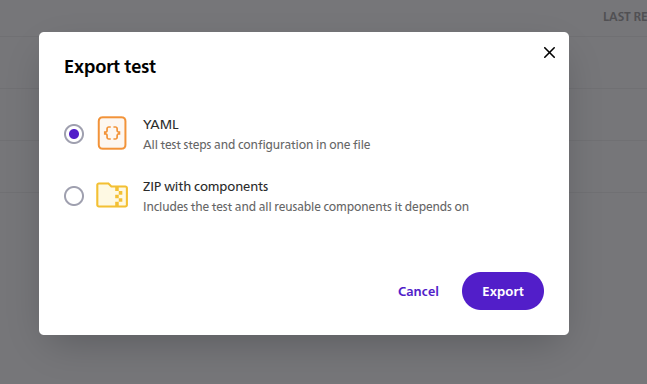
The export modal offers two formats:
| Format | Contains |
| ----------------------- | ------------------------------------------------------------------------------ |
| **YAML** | The test alone. Components and any files it uses are referenced, not included. |
| **ZIP with components** | The test, every reusable component it uses, and the files those steps need. |
Choose YAML when the destination project already has the required components or when you want a file that is easy to review. Choose ZIP when the destination may not have those components or files.
***
### Export a whole project
A project export is always a ZIP. It contains the tests, components, suites, profiles, project settings, folder structure, and uploaded files.
You can start it from two places:
* **Project settings → Export → Download .zip**
* The **Actions menu** on a project card in your project list → **Export**
***
### Export with the CLI
You can export a project ZIP or an individual test as YAML or ZIP from the terminal. See the [BugBug CLI](/integrations/cli.md#export-and-import) for commands and authentication options.
{% hint style="info" %}
Use `bugbug project export` for a project ZIP. Use `bugbug tests export --format yaml` or `--format zip` for one test.
{% endhint %}
***
### Export through the API
The [Public API](/integrations/public-api.md) returns both exports from `GET` endpoints. Authenticate with your project API token:
{% code title="Export a test as YAML" overflow="wrap" %}
```bash
curl -L \
-H "Authorization: Token " \
"https://api.bugbug.io/v2/tests//export/yaml/" \
-o test.bugbug.yaml
```
{% endcode %}
Replace `yaml` with `zip` to include the test's components. To export the whole project, call `/v2/project/export/`. The API token identifies the project, so that endpoint needs no project ID.
View export endpoint
***
### File names
Downloads use the slug of the exported item:
| Export | File name |
| -------------- | ------------------------- |
| Test as YAML | `test_.bugbug.yaml` |
| Test as ZIP | `test_.zip` |
| Project as ZIP | `project_.zip` |
***
### What an export does not include
An export contains **definitions**, not run results. It does not include:
* run history
* screenshots and DOM snapshots captured during runs
* console and network logs
Visual regression baselines are included because they are part of the test definition. A ZIP export puts them in `artifacts/`, alongside files used by upload steps.
Use a project export to move or preserve the test suite. It does not archive the results of previous runs.
***
### Keeping exports in Git
Exports are plain text files, so Git can show changes to steps and selectors. Commit an export, change a test in BugBug, and export it again to see the difference:
```diff
- action: click
action_details:
- selector: xpath=//BUTTON[@id="submit"]
+ selector: xpath=//BUTTON[@data-testid="submit"]
```
You can review those changes in the same pull request as the product changes that prompted them.
{% hint style="danger" %}
**Exports contain secret values in plain text.**
Exports do not mask secrets. Profile variables marked as secret are written with their real values. The same applies to values entered by `type` steps, including passwords, and to the username and password used by basic authentication steps.
Review an export for credentials before committing it to a shared repository. Treat it like a `.env` file: keep it in a private repository and do not publish it.
{% endhint %}
***
### Frequently asked questions
Can I export just one component, suite, or profile?
No. Export the project to get all of them, or export a test as ZIP to get the components it uses.
Can I export from the CLI?
Yes. The CLI can export project ZIP files and individual tests as YAML or ZIP. See [Export with the CLI](#export-with-the-cli).
Does exporting change anything in my project?
No. Export is read-only.
Can I export several tests at once without exporting the whole project?
Not from the app. Export the project ZIP and take the files you need out of `tests/`.
---
# Agent Instructions
This documentation is published with GitBook. GitBook is the documentation platform designed so that both humans and AI agents can read, navigate, and reason over technical content effectively. Learn more at gitbook.com.
## Querying This Documentation
If you need additional information that is not directly available in this page, you can query the documentation by asking a question.
Perform an HTTP GET request on the following URL with the `ask` and `goal` query parameters:
```
GET https://docs.bugbug.io/export-import-and-backup/exporting.md?ask=&goal=
```
`ask` is the immediate question: it should be specific, self-contained, and written in natural language.
`goal` is what the user is ultimately trying to achieve, the reason they need the answer. Sharing it helps GitBook give you a better, more relevant answer. A goal is most helpful when it describes the outcome the user wants rather than restating the question. For example, with `ask=how do I create an API token`, a goal like `automate deployments from our CI pipeline` lets GitBook tailor the answer to that use case.
The response will contain a direct answer to the question and relevant excerpts and sources from the documentation.
Use this mechanism when the answer is not explicitly present in the current page, you need clarification or additional context, or you want to retrieve related documentation sections.