> For the complete documentation index, see [llms.txt](https://docs.bugbug.io/llms.txt). Markdown versions of documentation pages are available by appending `.md` to page URLs; this page is available as [Markdown](https://docs.bugbug.io/export-import-and-backup/backups.md).
# Automatic backups
BugBug backs up every project once a day on paid plans. Download a backup as a ZIP and restore it as a new project whenever you need it.
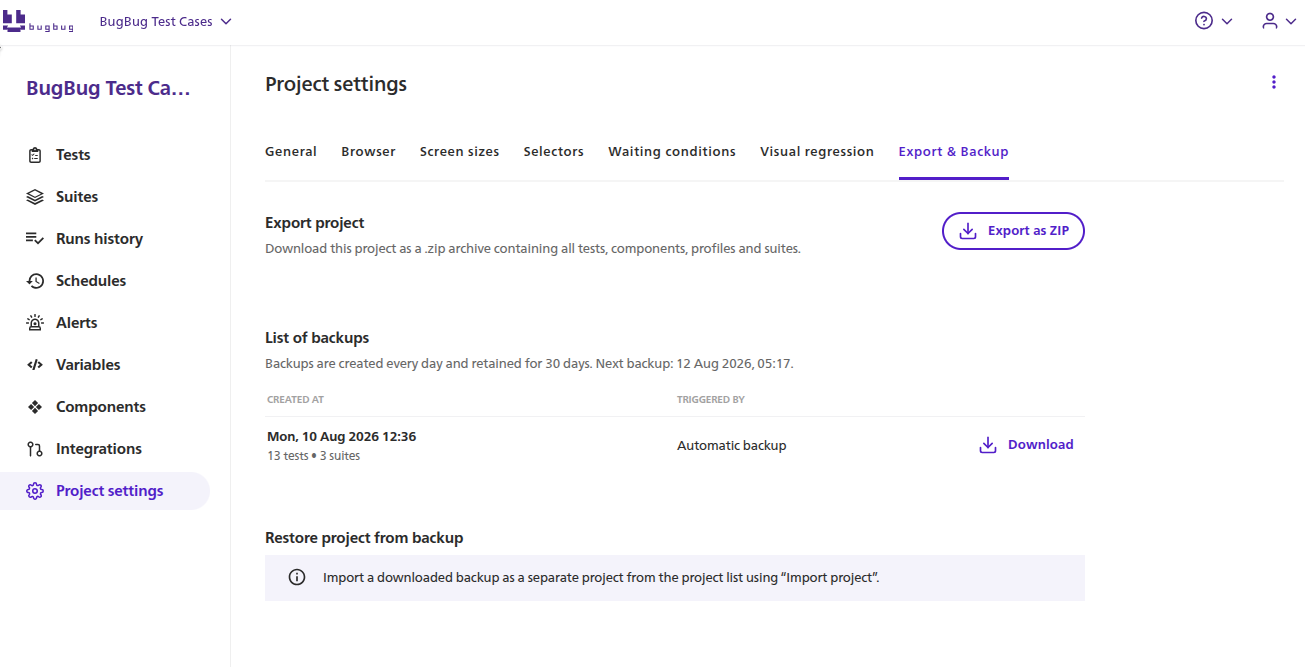
On paid plans, BugBug backs up every project once a day and keeps each backup for as long as your plan allows. There is nothing to set up. The backups collect in project settings, and you download the one you need.
A backup is a full [project export](/export-import-and-backup/exporting.md#export-a-whole-project): the same ZIP you would download yourself, only BugBug makes it for you.
***
### What a backup contains
A backup holds everything a manual project export holds:
* tests, reusable components, suites, and profiles
* project settings, selectors, waiting conditions, and screen sizes
* the folder structure
* files your tests use, in `artifacts/`: upload attachments and visual regression baselines
It does not contain run history, screenshots captured during runs, or logs. See [Exporting](/export-import-and-backup/exporting.md#what-an-export-does-not-include) for the full list.
{% hint style="danger" %}
**A backup contains secret values in plain text**, exactly like a manual export. Profile variables marked as secret, values typed by `type` steps, and basic authentication credentials are all written with their real values.
Treat a downloaded backup like a `.env` file: keep it out of shared drives and public repositories.
{% endhint %}
***
### Schedule and retention
Backups run once a day, starting shortly after **03:15 UTC**, and a project gets at most one per day. Packing a project takes time and every project is queued in the same run, so a new backup usually appears between 03:15 and 04:00 UTC. Large projects can land later. The app prints the start time of the next run above the list.
How long a backup stays available depends on your plan:
| Plan | Backups kept for |
| ------------ | ---------------- |
| **Free** | not available |
| **Core** | 7 days |
| **Pro** | 14 days |
| **Business** | 30 days |
During a trial you get the Pro retention of 14 days.
Once a backup passes its retention period it drops off the list and can no longer be downloaded. If you need a copy for longer than that, download it and store it yourself.
{% hint style="info" %}
Retention is counted per backup, from the moment it was created. Changing your plan does not extend the backups you already have - it changes how long the next ones are kept.
{% endhint %}
***
### Find and download a backup
1. Go to **Project settings → Export & Backup**.
2. Pick a backup from the list. The newest are first, with the date each one was taken and how many tests and suites it contains. Use **Show older** to see the rest.
3. Click **Download** in the row you need. The file arrives as `project__.zip`, for example `project_shop_2026-08-10.zip`.
***
### Restore from a backup
Restoring means importing the downloaded ZIP:
1. Download the backup you want.
2. Go to your project list.
3. Choose **Import project** and select the ZIP.
A project import always creates a **new project**. It never overwrites the project the backup came from, so you can restore an old state next to the current one and compare them before deciding what to keep. See [Importing](/export-import-and-backup/importing.md) for what happens to slugs and conflicts.
{% hint style="info" %}
To recover a single test, import the backup as a new project, export that one test from it, then import the test into your original project.
{% endhint %}
***
### Backups through the API
The [Public API](/integrations/public-api.md) exposes the same list and downloads. Authenticate as you would for any other v2 endpoint:
{% code title="List project backups" overflow="wrap" %}
```bash
curl -L \
-H "Authorization: Token " \
"https://api.bugbug.io/v2/projects//backups/"
```
{% endcode %}
{% code title="Download a project backup" overflow="wrap" %}
```bash
curl -L \
-H "Authorization: Token " \
"https://api.bugbug.io/v2/projects//backups//download/" \
-o backup.zip
```
{% endcode %}
The list response also carries the schedule. `nextBackupAt` is when the next run starts, not when the file is ready:
```json
{
"isActive": true,
"frequencyDays": 1,
"retentionDays": 14,
"nextBackupAt": "2026-08-11T03:17:00Z",
"backups": []
}
```
View backup API endpoints
***
### Availability
Automatic backups are part of every paid plan, including trials. On the Free plan the section shows an upgrade prompt instead of a list.
Draft projects - the temporary copies created while cloning or importing a project - are not backed up. They become eligible once the project itself is created.
***
### Frequently asked questions
Can I trigger a backup manually?
No. Use **Export as ZIP** in project settings when you want a copy right away. The file is identical, BugBug just does not keep a copy of it for you.
Do backups count towards any storage limit?
No.
Does restoring a backup undo changes in my current project?
No. A restore creates a separate project and leaves the original untouched.
Is a backup taken if nothing changed that day?
Yes. Every eligible project gets its daily backup regardless of activity.
What happens to my backups when I downgrade to Free?
New backups stop being created, and the section is replaced by an upgrade prompt. Download anything you still need before the change.
---
# Agent Instructions
This documentation is published with GitBook. GitBook is the documentation platform designed so that both humans and AI agents can read, navigate, and reason over technical content effectively. Learn more at gitbook.com.
## Querying This Documentation
If you need additional information that is not directly available in this page, you can query the documentation by asking a question.
Perform an HTTP GET request on the following URL with the `ask` and `goal` query parameters:
```
GET https://docs.bugbug.io/export-import-and-backup/backups.md?ask=&goal=
```
`ask` is the immediate question: it should be specific, self-contained, and written in natural language.
`goal` is what the user is ultimately trying to achieve, the reason they need the answer. Sharing it helps GitBook give you a better, more relevant answer. A goal is most helpful when it describes the outcome the user wants rather than restating the question. For example, with `ask=how do I create an API token`, a goal like `automate deployments from our CI pipeline` lets GitBook tailor the answer to that use case.
The response will contain a direct answer to the question and relevant excerpts and sources from the documentation.
Use this mechanism when the answer is not explicitly present in the current page, you need clarification or additional context, or you want to retrieve related documentation sections.